Compress JPEG Images Online
The easy way to compress JPEG images online—free, fast, and simple.
Choose images to compress
PNG · JPG · WEBP · GIF — up to 25.0 MB each
Compress up to 12 images at once
Phone upload uses a short-lived temporary relay
Photos on your phone?
Scan a QR code to send photos to this compressor. Images use a temporary relay; closing the link requests cleanup of the temporary copies.
How to Compress JPEG Images Online
Add one or more JPEG, JPG, PNG, WEBP, or GIF files, choose the output format and compression mode, then compare the actual result before downloading.
- 1
Choose images from this device or send them from your phone.
- 2
Select JPG, WEBP, or PNG output and pick Quality or Target file size mode.
- 3
Press Compress now. Compression runs in your browser.
- 4
Review the actual sizes, then download one file or a ZIP.
Compress JPG Images Without Unnecessary Quality Loss
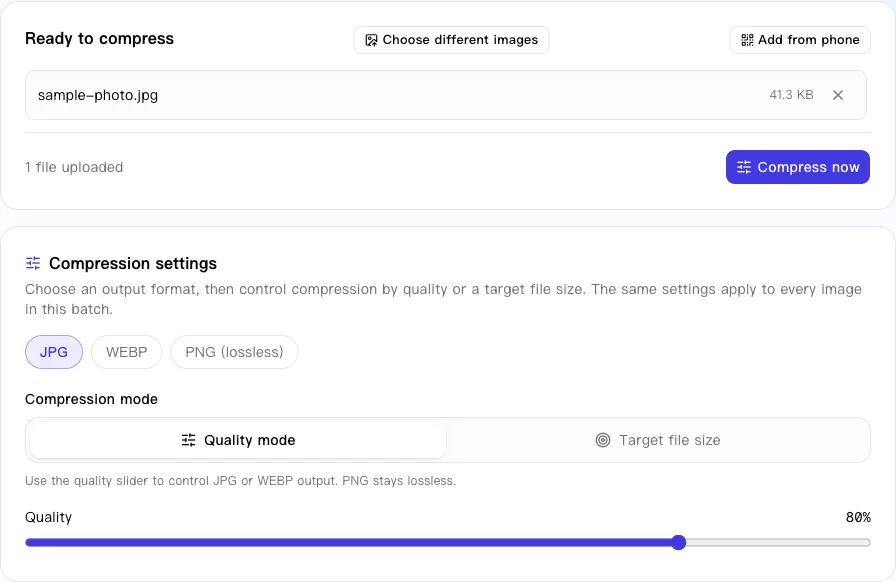
Choose a quality setting to balance image size and visual detail. Lower settings usually produce smaller files, while higher settings preserve more detail. For a specific size limit, use target file size mode.
Reduce Image File Size for Your Needs
Target file size mode sets a maximum size for each image. Choose a common preset or enter a custom limit up to 100 MB. The compressor searches for the highest quality that fits; pixel dimensions stay unchanged unless you enable automatic resizing.
Quality mode and target size mode control different things. Quality mode re-encodes at the quality you choose and keeps the pixel dimensions unchanged. Target file size mode searches for the highest quality that fits your limit, and only changes dimensions when you enable automatic resizing.
- 50 KB
- 100 KB
- 200 KB
- 500 KB
- 1 MB
- 2 MB
- Custom limit
20 KB is available through the custom limit; the preset buttons start at 50 KB.
A target is a goal, not a guarantee. Some images may not reach it without more reduction. If the dimensions themselves need to change, use the Image Resizer.
A batch can contain up to 12 images, with a maximum of 25 MB per image, 100 MB in total, and roughly 60 megapixels per image.
Compare JPEG File Size Before and After Compression
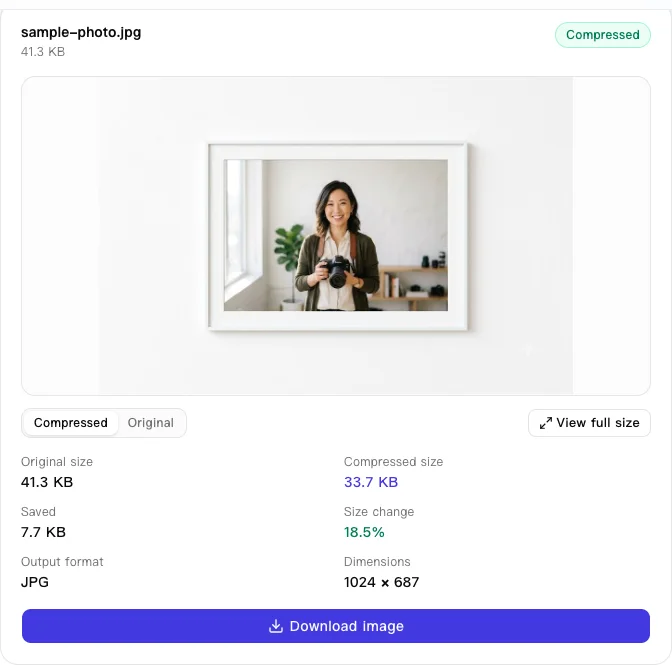
Every completed image reports its original size, compressed size, bytes saved, percentage change, output format, and dimensions. If an output is larger than the source, the result is marked as an increase instead of a saving.
Successful images can be downloaded separately or as a ZIP. To publish a compressed file with a direct link, continue with Image to URL.
Real sample result
- Original size
- 41.3 KB
- Compressed size
- 33.7 KB
- Saved
- 7.7 KB (18.5%)
- Output format
- JPG
- Dimensions
- 1024 × 687
Transparent Backgrounds and JPG, WEBP, or PNG Output
JPG and JPEG cannot store transparent pixels, so transparent areas become white when you choose JPG output. WEBP supports transparency and often produces a smaller web file. PNG output is lossless and keeps transparency, but it may be larger than the JPEG source.
Input can be PNG, JPG/JPEG, WEBP, or GIF. Choose JPG, WEBP, or PNG for the output.
- .jpg / .jpeg
- No transparency; transparent areas become white.
- .webp
- Supports transparency and often makes a smaller web file.
- .png
- Lossless and keeps transparency, but may be larger.
JPEG vs. JPG: Is There a Difference?
No. JPEG is the name of the compression format; .jpg and .jpeg are two extensions for the same image/jpeg file type. Use whichever your site, app, or operating system expects. Renaming one to the other does not change the image data or improve quality.
Upload Photos from Your Phone to Your Computer with a QR Code
If the JPEGs are on your phone, choose Upload from phone and scan the QR code. The phone page can select photos or open the camera, and the images appear in this compressor while the short-lived link remains open. No app is required on either device.
Phone photos use a temporary Photo2URL relay, not the public CDN. Closing or expiring the link requests deletion of the temporary copies. Compression itself runs in the desktop browser.
- 15 min link lifetime
- 12 photos per batch
- 25 MB per photo
- 100 MB per batch
Frequently Asked Questions
How can I compress a JPEG image online?
Choose one or more JPEG or JPG files in the compressor, select JPG, WEBP, or PNG output, and use Quality mode or Target file size mode. Press Compress now, review the actual before-and-after sizes, then download each result or all successful images as a ZIP.
Is JPG the same as JPEG?
Yes. JPG and JPEG are two file extensions for the same image format. The underlying format and MIME type are the same, so a .jpg file and a .jpeg file can be opened and compressed the same way.
How can I reduce the file size of a JPEG image?
Use a lower quality setting, set a target file size, or choose WEBP when it suits the image. Target file size mode starts with encoder quality and only reduces pixel dimensions when you explicitly enable automatic resizing. If dimensions need to change regardless of file size, use the Image Resizer.
Can I compress an image to 100KB or 200KB?
Yes. Target file size mode includes 50 KB, 100 KB, 200 KB, 500 KB, 1 MB, and 2 MB presets, plus a custom limit. A 20 KB limit can be entered through the custom option. The target is a maximum goal rather than a guarantee: the tool reports the actual output size and whether each image reached it.
Can I compress an image to 50KB or 20KB?
50 KB is a built-in preset. For 20 KB, choose the custom limit, enter 20, and select KB. Large photos may need automatic resizing or a larger target to reach 20 KB while remaining usable.
What is the difference between quality mode and target size mode?
Quality mode re-encodes the image at the quality level you choose and keeps its pixel dimensions unchanged. Target file size mode searches for the highest quality that fits your limit. It also keeps the dimensions unchanged unless you enable automatic resizing.
Does compressing an image reduce its dimensions?
Not by default. Quality mode preserves the original pixel dimensions, and target file size mode does the same unless automatic resizing is enabled. Use the Image Resizer when you need to change width or height regardless of file size.
Which image formats are supported?
You can add PNG, JPG/JPEG, WEBP, and GIF images. Results can be exported as JPG, WEBP, or PNG; JPG is selected by default. PNG output is lossless and keeps transparency, while JPG output fills transparent areas with white.
Is the image compressor free?
Yes. The compressor is free to use and does not require an account. Files chosen from this device are compressed in your browser; the optional phone upload flow uses a temporary relay.
Will compressing a JPEG reduce image quality?
JPEG is a lossy format, so compression can remove some image detail. Higher quality settings usually preserve more detail and produce larger files. Target file size mode keeps the highest encoder quality that fits the target, and PNG output is lossless, although a PNG may be larger than the original JPEG.
Can I upload photos from my phone to my computer using a QR code?
Yes. Choose Upload from phone in the desktop compressor, then scan the QR code with your phone. The phone page can select photos or open the camera, and those images are temporarily relayed through Photo2URL so the desktop browser can receive them while the 15-minute link remains open.
Can I upload multiple photos using a QR code?
Yes. The phone page accepts multiple photos, including a camera capture. The relay allows up to 12 images per batch, with a maximum of 25 MB per image and 100 MB in total, and new photos are added to the desktop compressor while the link remains open.
Do I need to install an app to upload photos using a QR code?
No. Both the desktop compressor and the phone page run in a web browser. Open the QR link on your phone, then choose photos from the browser or use the camera option when your device offers it.
Why is my compressed JPEG file larger than the original?
The original may already be highly optimized, and re-encoding it can add overhead, especially at a high quality setting. The result card shows an increase instead of hiding it. Try a lower quality setting, choose WEBP, or enable automatic resizing in target size mode when changing dimensions is acceptable; otherwise keep the original file.
Are my images uploaded to a server when I use Photo2URL?
Files you choose directly on your computer are decoded and re-encoded in that browser. If you use the optional phone QR flow, those photos are temporarily relayed through Photo2URL so the computer can receive them. Relay images are not added to the public CDN. Closing or expiring the link requests deletion of the temporary copies, and delayed storage cleanup is retried automatically. Compression itself runs in the desktop browser, and hosting a compressed result is a separate action.